Elastic Security Labs published a June 19, 2026 report on OXLOADER, a Windows loader delivered through malicious Google Ads that impersonated a Node.js installer. The campaign is important for users because the first step was not an exploit or an attachment. It was a sponsored search result that looked like a normal software download.
Elastic said the observed ad targeted people searching for terms such as lts version of node.js. The sponsored result led to node-js[.]prentiva99[.]info, a fake Node.js landing page. The ad was last shown on April 23, 2026, and Elastic said the advertiser and associated campaigns were removed from Google on May 14. The broader lesson is still current: attackers keep using ads and trusted hosting services to make fake installers look safer than they are.
How the Fake Installer Worked
After a visitor interacted with the fake Node.js page, the browser was redirected through app[.]miloyannopoulos[.]com/download?subid1=download to a batch script hosted on Storj, a legitimate cloud storage service. The script name reported by Elastic was BATPackageBuilderSetup.bat.
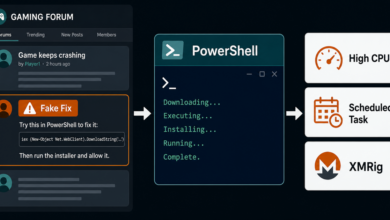
That batch file showed a fake software installation wizard while quietly using PowerShell to download and launch the next-stage executable. Elastic reported that the process used -Verb RunAs, which is a way to trigger a Windows User Account Control prompt. If the user approved the prompt, OXLOADER could run with elevated privileges.
From there, OXLOADER used DLL side-loading and other evasion techniques to deliver CastleStealer, an information stealer. For a home user, the exact loader internals matter less than the symptom: a download that pretends to be a normal setup flow can end in credential and browser-data theft.
Why This Is a Malvertising Problem
A sponsored result is not a safety guarantee. Ads can be bought, redirected, suspended, and replaced faster than most users can notice. In this case, the lure used a common developer tool, but the same pattern has already appeared around AI tools, free software, fake utilities, and browser updates.
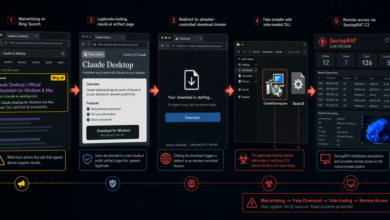
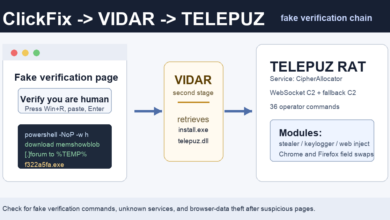
The OXLOADER chain overlaps with other fake-download stories recently seen in the wild: the user starts from search, video, social media, or an ad; the landing page imitates a real product; and the final download uses a script, installer, or command prompt to get code running. Compare it with the fake download TDS campaign and the fake ChatGPT and Claude installer campaign.
Concrete Clues to Check
If you recently tried to install Node.js from a search ad, check your browser history and Downloads folder for the reported fake domain node-js[.]prentiva99[.]info, the redirect domain app[.]miloyannopoulos[.]com, or a batch file named BATPackageBuilderSetup.bat. Elastic also listed OXLOADER samples masquerading as names such as node-v24.15.0-x64-86.exe and apimonitor-x64.exe.
These names are useful clues, not a complete blocklist. Attackers can rotate domains, file names, and storage links quickly. Treat any installer that asks you to run a batch file, approve an unexpected UAC prompt, or paste a PowerShell command as suspicious, especially if it came from an ad or a non-official download page.
What to Do Before Installing Developer Tools
For Node.js, use the official project site, a trusted package manager, or your organization’s approved software portal. Do not rely on the first sponsored result for developer runtimes, browsers, PDF tools, VPNs, crypto wallets, or AI utilities. If you are unsure, type the official domain manually or check the project’s verified GitHub organization before downloading.
On Windows, pause if an installer starts by opening a command window, a batch file, or a script runner. A real installer may request admin rights, but it should come from a source you can verify. If the file came through an ad landing page and immediately asks for elevated permissions, cancel it.
If You Already Ran It
If you clicked the fake ad but did not run a file, close the page, delete the download, and install Node.js from the official source. If you ran the batch file or approved the UAC prompt, treat the computer as potentially compromised.
Run a reputable malware scan, remove recently downloaded installers and unknown startup entries, review browser extensions, and sign out of sensitive accounts. Because CastleStealer is designed to steal information, change important passwords from a clean device and check email, banking, crypto, and developer accounts for suspicious sessions or recovery changes.
If the same device also shows unwanted tabs, fake alerts, browser redirects, or new software you did not choose, review the Potentially Unwanted Programs guide and the FlutterBridge malvertising example for similar deceptive-install behavior.
Quick Check
Search ads are useful for discovery, not for trust. Before running a software installer, check the domain, the file type, and whether the setup flow suddenly moves into scripts or PowerShell. For popular tools such as Node.js, the safe path is the official site or a trusted package manager, not a sponsored clone page.
References
- Elastic Security Labs: OXLOADER loader distributing CastleStealer
- The Hacker News: New OXLOADER Loader Uses Malicious Google Ads to Deliver CastleStealer
Related proxyware update: Infoblox later connected fake 7-Zip and WireVPN-style installers to Lurking Lizard proxyware that can turn a device into a residential proxy node. See the fake 7-Zip proxyware report for the user checks.