HUMAN’s Satori researchers have reported a large Android ad-fraud and malvertising operation called Trapdoor. The important part for Adware Guru readers is the user-facing trick: ordinary utility apps could show fake update ads that pushed people toward installing a second app, while the hidden fraud happened out of sight.
This is not a normal browser notification scam and it is not a reason to panic about every Android ad. It is a reminder to treat “update” prompts inside ads with suspicion, especially when they ask you to install another app instead of taking you to the app’s official Google Play page.
What Happened
HUMAN published its Trapdoor research on May 19, 2026. The company says the operation involved 455 malicious Android apps, 183 threat actor-controlled command-and-control domains, more than 24 million app downloads, and a peak of 659 million bid requests per day.
The campaign blended two things that usually get discussed separately: malvertising and ad fraud. In the first stage, users installed Android utility-style apps, such as PDF readers, file managers, or cleanup apps. Those apps were designed to look ordinary and did not immediately perform the hidden ad-fraud behavior.
That Android app-install pattern also appears in premium SMS and carrier-billing fraud, where fake apps can create unexpected phone-bill charges instead of only generating hidden ad traffic.
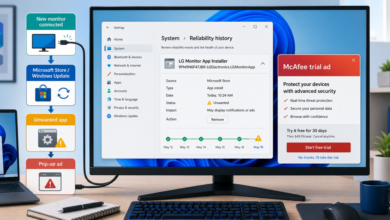
The next step was the risky one. The first app could show ads claiming that the app was outdated or unsupported. The fake update button did not behave like a safe in-app update. It tried to push the user into installing a second threat actor-owned app.
How the Trapdoor Flow Worked
According to HUMAN’s technical report, Trapdoor used attribution checks to decide whether an install came from an organic source or from a threat actor-run ad campaign. The apps inspected values such as tracker_name and reserved the malicious workflow for installs that looked ad-driven. That helped the operation stay quieter when researchers downloaded an app directly for testing.
After the second app was installed, the fraud moved into a hidden Android WebView. The app contacted command-and-control infrastructure, loaded threat actor-owned HTML5 game or news domains, and used preconfigured touch instructions to simulate taps and swipes on ads. HUMAN’s report describes files such as move.txt and click.txt being used for automated gestures, and a /api/referrer request used for anti-analysis checks such as rooted-device, debugging, and VPN indicators.
For a user, this may not look like a traditional infection. The visible clues are more likely to be suspicious update ads, an unexpected second app, unusual battery or data use, or apps that were installed shortly before pop-ups and redirects became more common.
What Android Users Should Check
If you recently tapped an update ad inside an app, start by checking Android’s installed app list. Open Settings, then Apps, and sort or review by recently installed apps if your Android version supports it. Remove apps you do not recognize, especially duplicate PDF readers, cleaners, file managers, download helpers, game portals, or apps installed outside the normal Play Store update flow.
Next, open the Google Play Store, tap your profile icon, and check Play Protect. Run a scan and review any warnings. If the app is still listed in Google Play, open the app’s Play Store page directly and use the normal update button there. Do not use update buttons shown inside ads, pop-ups, or redirect pages.
It is also worth checking browser-side symptoms. If Chrome or another Android browser is showing unwanted pop-ups, redirects, or fake alerts, review notification permissions and site settings. Adware Guru’s Pop-up Ads and Browser Notifications Removal Guides explain how to separate browser permissions from installed-app problems, and the Browser Notification Scam Removal Guide is useful if the visible symptom is fake alerts coming from a website permission.
Why This Matters for Adware Cleanup
Trapdoor shows why unwanted ads are not always caused by the page currently open in the browser. Sometimes the source is an app, an advertising SDK, a fake update prompt, or a second installation triggered by an earlier ad. That is why Android cleanup should include both browser permissions and recently installed apps.
The campaign is also a good example of why legitimate ad and attribution technology should not be treated as automatically malicious. Attribution tools are common in normal mobile marketing. In this case, the abuse came from threat actors using that ecosystem to hide fraud and select which installs should receive the malicious workflow.
Quick Takeaway
Do not install Android “updates” from ads. Update apps through Google Play or the app developer’s official site. If an app says it is outdated but redirects you to another app, a download page, or a full-screen ad, close it and check the app manually from Google Play.
If you are already dealing with repeated ads or redirects, review recently installed Android apps first, then check browser notification permissions. For general background on how adware creates unwanted ads and redirects, see What Is Adware? Signs, Risks and Removal Basics. For older Android adware context, Adware Guru has also covered large Android app adware campaigns where utility-style apps were used to reach ordinary users.
References