Remove Tronehammer.top pop-up ads (Virus Removal Guide)

Quick answer
What to do about Tronehammer.top
Short answer: Tronehammer.top is usually a browser pop-up, redirect, or notification-permission problem rather than a normal system message.
Start here: close the tab, do not press Allow, remove the site from browser notifications, and check recent extensions if it returns.
Need browser steps? Use our browser notification scam removal guide for Chrome, Edge, Firefox, Safari, and Android.
Tronehammer.top is a domain that tries to trick you into clik to its browser notifications so that it can send notification spam to your computer or phone.
What is Tronehammer.top?
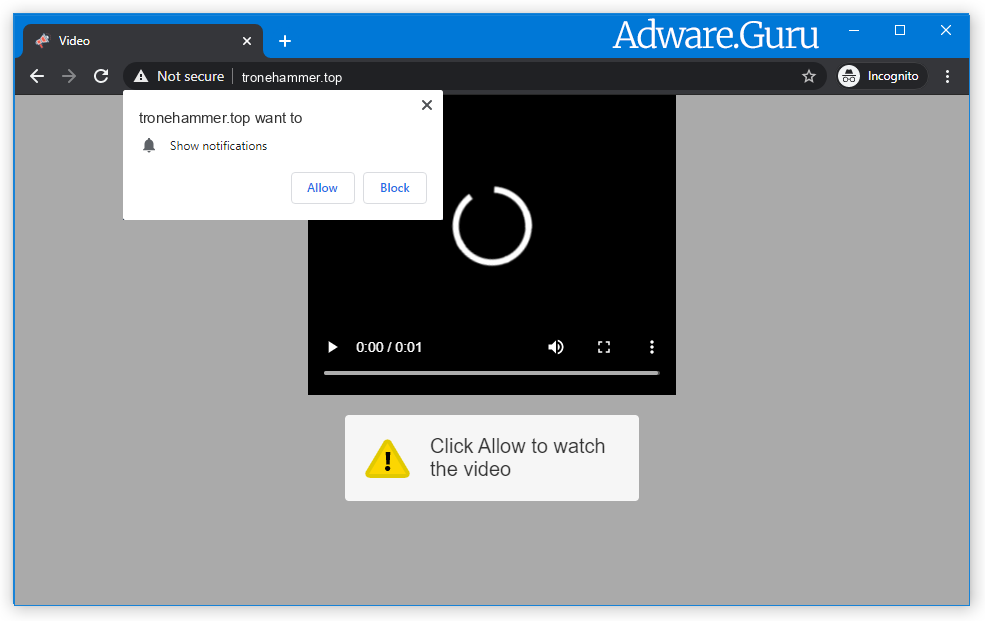
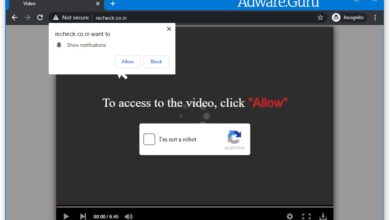
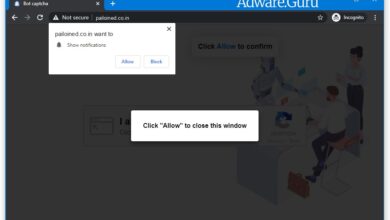
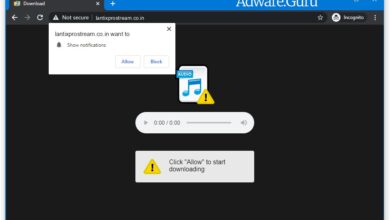
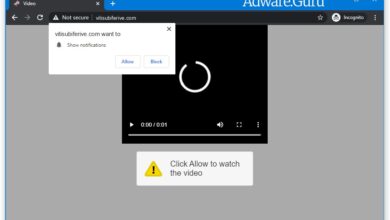
Tronehammer.top is a malicious site that displays fake error messages to trick you into subscribing to its browser notifications. These are a some of the fake error messages that the Tronehammer.top will display to trick you into clicking the “Allow” button:
Click "Allow", to watch the video
Click "Allow", to start downloading
Click "ALLOW" to play the video
Stream and download available
To access, click allow!
If you are 18+ click allow
You should not click on the “Allow” button when you see such messages. If you click on the “Allow” button, you will start seeing spam pop-ups from Tronehammer.top on your PC or phone, even when the browser is closed. The Tronehammer.top annoying notification ads are for 18+ sites, fake software updates, unwanted programs and etc.
Why am I getting the Tronehammer.top pop-up ads?
You are seeing the Tronehammer.top ads because your PC is infected with a malicious program or a site that you have just visited has redirected your browser to this domain.
Questionable sites can display malefic ads that redirect your browser to Tronehammer.top to generate advertising revenue. If this happens, you can close the page and install a free browser extension like Adblock to block the ads. However, if you continuously see pop-ups from Tronehammer.top, then your computer might be infected with a computer virus, and we will need to scan your computer for viruses and eliminate it.
Here are a few typical signs that you have a infected PC:
- Advertisements appear in places they shouldn’t be;
- Your homepage has mysteriously changed without your permission;
- Website links redirect to questionable sites different from what you expected;
- Web pages that you typically visit are not displaying properly;
- Browser pop-ups appear which recommend fake updates or other software;
- Other unwanted programs might get installed without your knowledge;
To check your computer for the Tronehammer.top and remove it for free, please use the guide.
How to Remove Tronehammer.top:
- Remove Tronehammer.top Automatically
- Remove Tronehammer.top From Programs and Features
- Delete Rogue Programs From File Explorer
- Remove Tronehammer.top Adware From Browsers
- Delete Tronehammer.top Notifications
- Get rid of Tronehammer.top pop-ups and notifications on Android
- How to Protect Your PC From Tronehammer.top and Other Adware
Remove Tronehammer.top Automatically:
The easiest method to stop Tronehammer.top ads is to run an anti-malware program capable of detecting adware in general and Tronehammer.top in particular. You may try GridinSoft Anti-Malware. It’s good at detecting and removing adware and other PUPs (potentially unwanted programs).
Other software that may be able to get rid of Tronehammer.top:
Note: After removing the adware you might still need to disable Tronehammer.top notifications manually (see the step named Delete Tronehammer.top Notifications).
You can also try to remove Tronehammer.top by hand using the following instructions.
Remove Tronehammer.top From Programs and Features:
Go to Programs and Features, uninstall suspicious programs, programs you don’t remember installing, or programs you installed just before Tronehammer.top appeared on your browser for the first time. When you are not sure if a program is safe, look for the answer on the Internet.
Windows 11:
- Right-click the Start button and select Installed apps.
- Sort apps by install date and look for programs you do not recognize.
- Click the three dots button next to the suspicious program and select Uninstall.
- Restart the PC and check the browser again.
Windows 10:
- Right-click the Start button and select Apps and Features.
- Sort apps by install date and inspect programs installed before the pop-ups started.
- Select the suspicious program and click Uninstall.
- Restart Windows after removal.
Delete Adware App From File Explorer:
This step is for experienced computer users. You might accidentally delete something you weren’t supposed to. Sometimes malicious programs don’t show up in Programs and Features. Check also %ProgramFiles%, %ProgramFiles(x86)%, and especially %AppData% and %LocalAppData% (these are shortcuts; type or copy and paste them into the address bar of File Explorer). If you see folders with unfamiliar names, see what’s inside, google those names to find out if they belong to legitimate programs. Delete the ones that are obviously associated with malware. If you are not sure, back them up before deleting them (copy to a different location, for example to a thumb drive). Or you can easy to use GridinSoft Anti-Malware for search and remove such files:
Remove Tronehammer.top From Browsers:
Remove suspicious browser extensions you do not recognize. You can also reset browser settings with GridinSoft Anti-Malware:
Remove Tronehammer.top from Google Chrome:
- Click on three dots menu button
 at the top right corner of the window.
 - Select More tools ⇒ Extensions.
- Click REMOVE to uninstall an extension.
- Click Remove in the dialog box.
Remove Tronehammer.top from Mozilla Firefox:
- Click on menu button
 and select Add-ons.
 - Go to Extensions tab.
- To uninstall an add-on, click on Remove button next to it.
Remove Tronehammer.top from Microsoft Edge:
- Open edge://extensions/ in the address bar.
- Turn off or remove extensions you do not recognize.
- Open edge://settings/content/notifications.
- Remove Tronehammer.top and other suspicious sites from the Allow list.
- If redirects continue, open edge://settings/reset and use Restore settings to their default values.
Remove Tronehammer.top from Opera:
- Press Ctrl +Shift + E keys to open extensions manager.
- To remove an add-on, click on the x button next to it.
- Click OK when asked to confirm.
Remove Tronehammer.top from Safari:
- On the top menu select Safari => Preferences.
- Select Extensions tab.
- Select an extension you want to delete and click Uninstall button next to it.
Delete Tronehammer.top Notifications:
Remove Tronehammer.top Notifications From Google Chrome:
- Open chrome://settings/content/notifications (just copy this and paste into the address bar of Chrome).
- Delete all rogue notifications by clicking three vertical dots button next to each and selecting Remove.
Remove Tronehammer.top Notifications From Mozilla Firefox:
- Click on menu button and select Options.
- Select Privacy & Security on the left side of the window.
- Scroll down to Permissions section and click Settings… button next to Notifications.
- Find sites you down’t want to see notifications from, click on drop-down menu next to each and select Block.
- Click Save Changes button.
Get rid of Tronehammer.top pop-ups and notifications on Android:
Disable Tronehammer.top notifications:
Note: Steps might differ a little depending on the version of your Android.
- Tap Settings.
- Select Apps & notifications => Apps.
- Find and tap the browser that displays Tronehammer.top notifications.
- Tap Notifications.
- Find Tronehammer.top in the list and disable it.
Stop Tronehammer.top redirects:
If Tronehammer.top is opening up on new tabs in your browser every now and then, that indicates you have adware. Probably one on the apps you installed lately is triggering these pop-ups. Uninstall recenly installed and questionable apps you have. Alternatively, usage Loaris Trojan Remover or one more anti-malware tools to check your device for malware.
Pop-ups and ads on Android may also not be caused by anything set up however originated from sites instead. To get rid of those ads, you can utilize an Trojan Scanner:
Open Trojan Scanner on Google Play
How to Protect Your PC From Tronehammer.top:
- Get a powerful anti-malware software application capable of identifying and eliminating PUPs. Having several on-demand scanners would certainly be a great suggestion as well.
- Maintain Windows firewall program allowed or get a third-party one.
- Download and install as well as utilize Adguard, uBlock Origin, Adblock, or Adblock Plus browser extension/add-on to obstruct third-party promotions on websites.
- When mounting free software or shareware, be reasonable and don’t rush via the procedure. Pick Custom or Advanced setup mode, try to find checkboxes that request your permission to mount third-party applications and also uncheck them, read End User License Agreement to see to it nothing else is going to obtain installed. You can make exceptions for the apps you know and count on, certainly. If declining from installing unwanted programs is not feasible, we encourage you to cancel the setup completely.