Remove Lunnews.com Pop-up Ads (Chrome, Edge, Firefox)

Quick answer
What to do about Lunnews.com
Short answer: Lunnews.com is usually a browser pop-up, redirect, or notification-permission problem rather than a normal system message.
Start here: close the tab, do not press Allow, remove the site from browser notifications, and check recent extensions if it returns.
Need browser steps? Use our browser notification scam removal guide for Chrome, Edge, Firefox, Safari, and Android.
Quick verdict, updated May 2026: Lunnews.com is treated here as a browser notification scam associated with fake news-style prompts and redirect ads.
Lunnews.com tries to make the browser Allow button look necessary. If permission is granted, the site can send unwanted notification ads even after the original page is closed.
First check: Block Lunnews.com in browser notifications and review extensions if it returns on unrelated sites.
Related guide: For browser-specific notification settings in Chrome, Edge, Firefox, Safari, and Android, use the browser notification scam removal guide.
What is Lunnews.com?
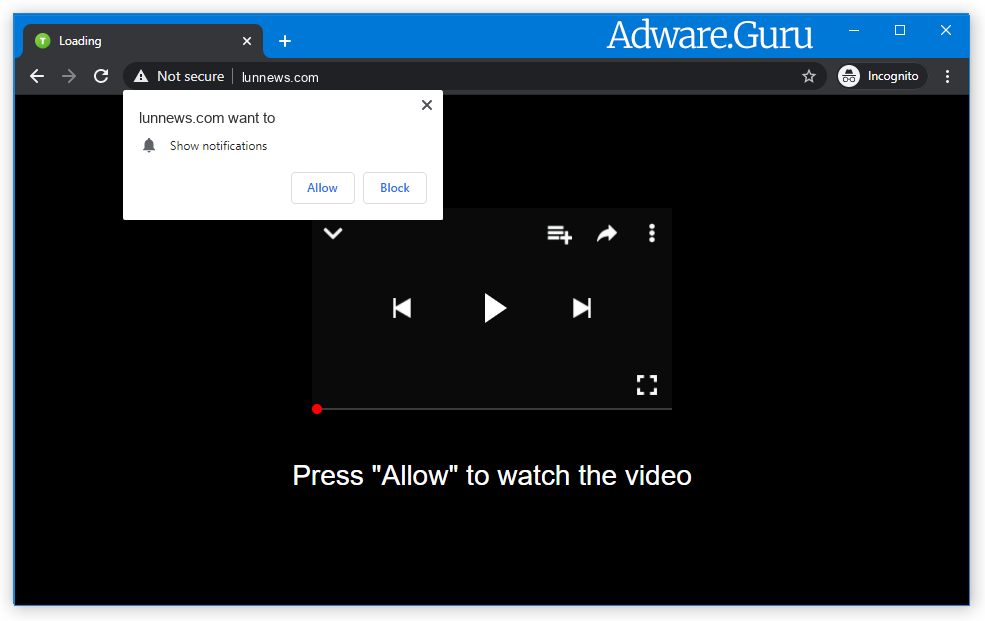
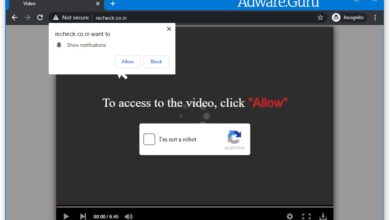
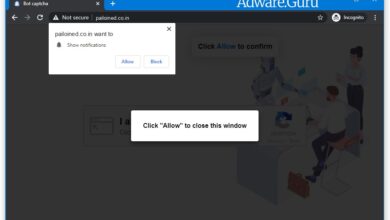
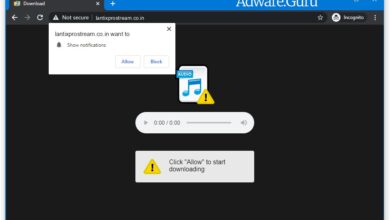
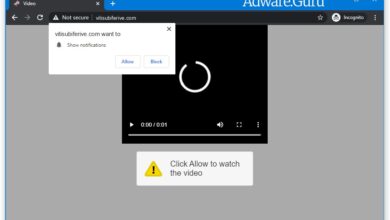
Lunnews.com is not a required browser update, video player, or system message. It uses short fake prompts around the notification permission dialog so the request looks like part of opening content.
Click "Allow", to watch the video
Click "ALLOW" to play the video
Stream and download available
To access, click allow!
If you are 18+ click allow
Download is ready. Click Allow to download your file
Press Allow to verify that you are not a robot
Important: Do not click Allow on Lunnews.com. If the site already has permission, remove it from browser notification settings first. Then use the steps below to check extensions, installed programs, and Android notification settings if the ads continue.
Why am I seeing Lunnews.com pop-up ads?
Lunnews.com usually appears after an advertising redirect, a misleading download or streaming page, or a site that uses aggressive ad networks.
If it happened once, closing the tab and blocking notifications may be enough. If it keeps appearing on trusted sites, check browser extensions and recently installed programs because adware may be reopening the redirect chain.
Here are common signs that adware or a browser hijacker may be present:
- Advertisements appear in places they shouldn’t be;
- Your homepage has changed without your permission;
- Website links redirect to questionable sites different from what you expected;
- Web pages that you typically visit are not displaying properly;
- Browser pop-ups appear which recommend fake updates or other software;
- Other unwanted programs might get installed without your knowledge;
To check your computer for the Lunnews.com and remove it for free, please use the guide.
How to Remove Lunnews.com:
- Remove Lunnews.com Automatically
- Remove Lunnews.com From Programs and Features
- Delete Rogue Programs From File Explorer
- Remove Lunnews.com Adware From Browsers
- Delete Lunnews.com Notifications
- Get rid of Lunnews.com pop-ups and notifications on Android
- How to Protect Your PC From Lunnews.com and Other Adware
Remove Lunnews.com Automatically:
The easiest method to stop Lunnews.com ads is to run an anti-malware program capable of detecting adware in general and Lunnews.com in particular. You may try GridinSoft Anti-Malware. It’s good at detecting and removing adware and other PUPs (potentially unwanted programs).
Other software that may be able to get rid of Lunnews.com:
Note: After removing the adware you might still need to disable Lunnews.com notifications manually (see the step named Delete Lunnews.com Notifications).
You can also try to remove Lunnews.com by hand using the following instructions.
Remove Lunnews.com From Programs and Features:
Go to Programs and Features, uninstall suspicious programs, programs you don’t remember installing, or programs you installed just before Lunnews.com appeared on your browser for the first time. When you are not sure if a program is safe, look for the answer on the Internet.
Windows 11:
- Right-click the Start button and select Installed apps.
- Sort the list by install date and look for programs you do not recognize.
- Click the three dots button next to the suspicious program and select Uninstall.
- Restart the PC, then check the browser again.
Windows 10:
- Right-click the Start button and select Apps and Features.
- Sort apps by install date and inspect programs installed before the pop-ups started.
- Select the suspicious program and click Uninstall.
- Restart Windows after removal.
Delete Adware App From File Explorer:
This step is for experienced computer users. You might accidentally delete something you weren’t supposed to. Sometimes malicious programs don’t show up in Programs and Features. Check also %ProgramFiles%, %ProgramFiles(x86)%, and especially %AppData% and %LocalAppData% (these are shortcuts; type or copy and paste them into the address bar of File Explorer). If you see folders with unfamiliar names, see what’s inside, google those names to find out if they belong to legitimate programs. Delete the ones that are obviously associated with malware. If you are not sure, back them up before deleting them (copy to a different location, for example to a thumb drive). Or you can easy to use GridinSoft Anti-Malware for search and remove such files:
Remove Lunnews.com From Browsers:
Remove suspicious browser extensions you do not recognize. You can also reset browser settings with GridinSoft Anti-Malware:
Remove Lunnews.com from Google Chrome:
- Click on three dots menu button
 at the top right corner of the window.
 - Select More tools ⇒ Extensions.
- Click REMOVE to uninstall an extension.
- Click Remove in the dialog box.
Remove Lunnews.com from Mozilla Firefox:
- Click on menu button
 and select Add-ons.
 - Go to Extensions tab.
- To uninstall an add-on, click on Remove button next to it.
Remove Lunnews.com from Microsoft Edge:
- Open edge://extensions/ in the address bar.
- Turn off or remove extensions you do not recognize.
- Open edge://settings/content/notifications.
- Remove Lunnews.com and other suspicious sites from the Allow list.
- If redirects continue, open edge://settings/reset and use Restore settings to their default values.
Remove Lunnews.com from Opera:
- Press Ctrl +Shift + E keys to open extensions manager.
- To remove an add-on, click on the x button next to it.
- Click OK when asked to confirm.
Remove Lunnews.com from Safari:
- On the top menu select Safari => Preferences.
- Select Extensions tab.
- Select an extension you want to delete and click Uninstall button next to it.
Delete Lunnews.com Notifications:
Remove Lunnews.com Notifications From Google Chrome:
- Open chrome://settings/content/notifications (just copy this and paste into the address bar of Chrome).
- Delete all rogue notifications by clicking three vertical dots button next to each and selecting Remove.
Remove Lunnews.com Notifications From Mozilla Firefox:
- Click on menu button and select Options.
- Select Privacy & Security on the left side of the window.
- Scroll down to Permissions section and click Settings… button next to Notifications.
- Find sites you down’t want to see notifications from, click on drop-down menu next to each and select Block.
- Click Save Changes button.
Get rid of Lunnews.com pop-ups and notifications on Android:
Disable Lunnews.com notifications:
Note: Steps might differ a little depending on the version of your Android.
- Tap Settings.
- Select Apps & notifications => Apps.
- Find and tap the browser that displays Lunnews.com notifications.
- Tap Notifications.
- Find Lunnews.com in the list and disable it.
Stop Lunnews.com redirects:
If Lunnews.com is opening up on new tabs in your browser every now and then, that indicates you have adware. Probably one on the apps you installed lately is triggering these pop-ups. Uninstall recenly installed and questionable apps you have. Alternatively, usage Loaris Trojan Remover or one more anti-malware tools to check your device for malware.
Pop-ups and ads on Android may also not be caused by anything set up however originated from sites instead. To get rid of those ads, you can utilize an Trojan Scanner:

Frequently Asked Questions
Is Lunnews.com a virus?
Lunnews.com is usually a browser notification or redirect problem rather than a classic file-infecting virus. Still, if it keeps returning after you block notifications, check Windows for adware and unwanted browser extensions.
Why do Lunnews.com pop-ups appear when the site is closed?
Browser notifications can appear after the original tab is closed if the site was added to the browser’s allowed notification list. Remove Lunnews.com from notification permissions in Chrome, Edge, Firefox or Android.
Should I reset the browser?
Reset the browser only if removing notifications and suspicious extensions is not enough. A reset can clear hijacker changes, but it may also remove custom search settings and disable extensions you wanted to keep.
Do I need an anti-malware scan?
Run a scan if Lunnews.com opens repeatedly, appears on trusted websites, returns after reboot, or if unknown programs were installed around the same time the pop-ups started.
Related guide: If you are cleaning several similar pop-up domains, use our browser notification scam removal guide to review notification permissions, browser extensions, and adware checks in one place.
How to Protect Your PC From Lunnews.com:
- Get a powerful anti-malware software application capable of identifying and eliminating PUPs. Having several on-demand scanners would certainly be a great suggestion as well.
- Maintain Windows firewall program allowed or get a third-party one.
- Download and install as well as utilize Adguard, uBlock Origin, Adblock, or Adblock Plus browser extension/add-on to obstruct third-party promotions on websites.
- Don’t just click any kind of link you see while browsing the internet. That uses specifically to web links in comments, on forums, or in instantaneous messengers. Pretty frequently these are spam web links. Occasionally they are utilized for boosting the traffic to websites, but usually adequate they will land you on web pages that will try to implement a malicious code and also contaminate your computer. Links from your good friends are suspicious as well: the individual who shares an adorable video could not understand that the page includes an intimidating manuscript.
- Don’t download software applications from unproven websites. You can easily download and install a trojan (malware that claims to be a useful application), or some unwanted programs could obtain installed in addition to the application.
- When mounting free software or shareware, be reasonable and don’t rush via the procedure. Pick Custom or Advanced setup mode, try to find checkboxes that request your permission to mount third-party applications and also uncheck them, read End User License Agreement to see to it nothing else is going to obtain installed. You can make exceptions for the apps you know and count on, certainly. If declining from installing unwanted programs is not feasible, we encourage you to cancel the setup completely.